INTRO
The prior section illustrated how to bring images to the server. This section will show how to insert those images into a message.
<hr>
CONTENTS
Basic Image Posting Techniques
• The difference between gallery page and image source URLs
• Getting the image URL
• Pasting the image URL
• Inserting BBcode tags
Advanced Image Posting Techniques
• Using Images as links
• Using Thumbnails
<hr>
BASIC IMAGE POSTING TECHNIQUES
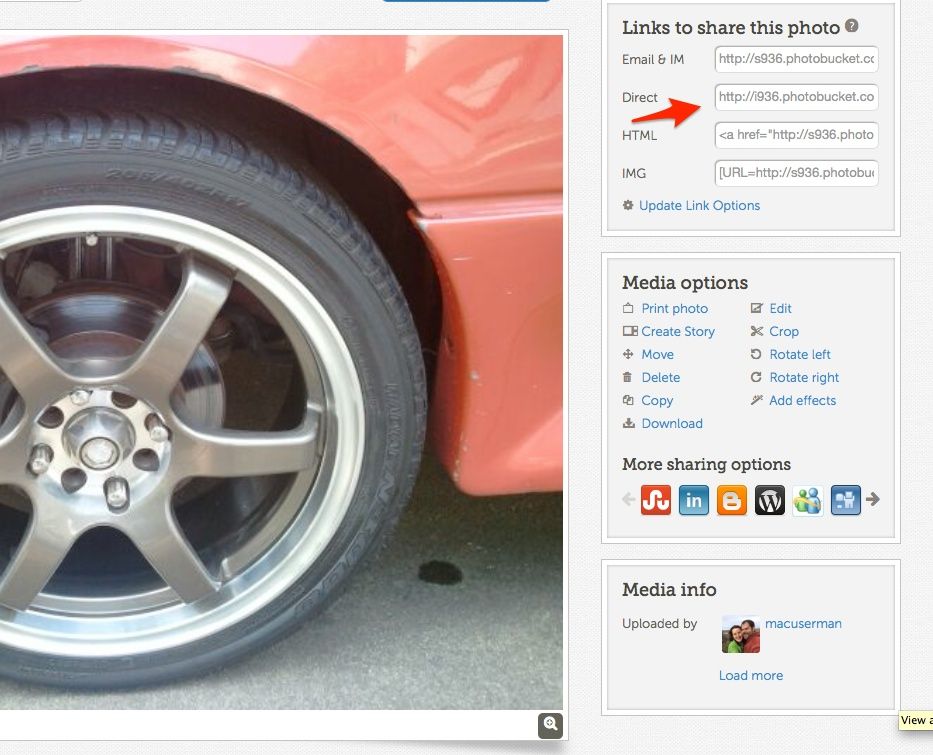
When you're looking at a webpage with a picture on it, in order for that picture to be displayed, the HTML code for the page needs a valid URL for where the picture is located. You need that same URL to insert an image into a post. When you're at a gallery page, you need to get the URL source for the image being displayed. The gallery page URL is different from this, and won't work at all with the BBcode IMG tags (the URL tags will still work). The following steps will show you how to extract the image URL from a gallery page, and use it to embed images in your posts.
STEP 1: The difference between gallery page and image source URLs
This is a gallery page. The URL in the Location line is pointing to a
webpage, not an image. Note the section of the URL that says "
album_page.php", and the titlebar on the window that says "
TeamSwift.net :: Photo Album"

This is an image. This isn't a webpage and there is no other content present. The location line has the source URL for where this image is stored. This is the URL you need for image linking. Note the section of the URL that says
"album_pic.php", and the titlebar on the window that says "
album_pic.php JPEG Image, 587x352 pixels" The next section will cover different ways to get this URL.
 STEP 2: Getting the image URL
There's a few ways to get the source URL for an image:
Method A:
• go the image properties window and copy it from there (use this method if you use Internet Explorer)


<hr>
Method B:
• go directly to the image's URL, and copy it from the location line


<hr>
Method C:
• right-click and copy the url right from the image

<hr>
STEP 2: Pasting the image URL
• using either your browser's Edit menu or by right-clicking, paste the URL into the Edit Post window
 STEP 3: Inserting BBcode tags
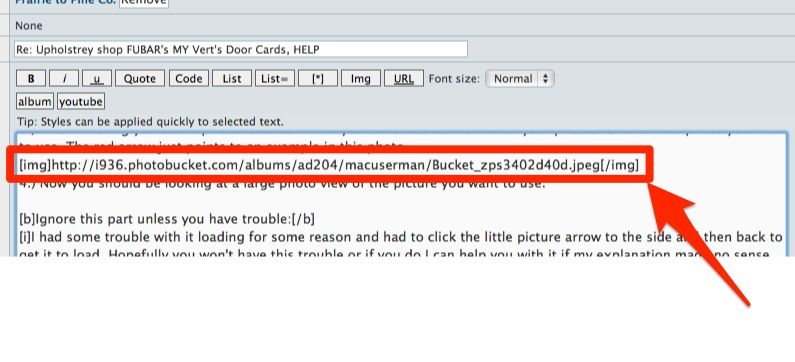
Once the image URL is pasted you will need to wrap it in
BBcode tags to tell the server you want to display a picture. You also need to decide how you want it displayed in your post. Usually to display the image you would wrap the url with the IMG tags. However if you have a very large image you may wish to only have it show up as a link, in that case wrap the URL in a URL tag. Selecting your URL and clicking on the IMG or URL buttons will format the correct tags for you. You can also choose to type them out, if the buttons don't work in your browser.
The line with the blue
URL tags will produce a link to the picture
The line with the red
IMG tags will show the picture in the post

This is an example of using the
URL tag:
http://www.teamswift.net/album_pic.php?pic_id=1
This is an example of using the
IMG tag:

<hr>
ADVANCED IMAGE POSTING TECHNIQUES
Using Images as links
It's also possible for a picture to become a clickable URL. In your BBcode, you will need the URL for your image thumbnail, as well as the URL you want the link to go to. To do this you basically wrap a BBcode IMG tag with a secondary URL tag:
sample code would look like this:
Code:
[url=http://www.teamswift.net/forum/index.php][img]http://www.teamswift.net/forum/album_thumbnail.php?pic_id=1[/img][/url]
the result would be this (image is a link that can be clicked):
 Using Thumbnails
If you have a large image that you don't want to directly show in your post, you can instead use a thumbnail. All images uploaded to the Album automatically have thumbnails generated for them. You can use these automatically generated thumbnails for previews in your posts. Using thumbnails involves a variation of the Images as links section mentioned above. You will end up composing a line of BBcode that has an image URL for your thumbnail, and a link to the fullsize image (or a page that image resides on). Note: the server may issue a URL for a thumbnail that is different from where it's stored. Make sure the thumbnail is the only image on screen when you grab the URL.


sample code would look like this:
Code:
[url=http://www.teamswift.net/forum/album_pic.php?pic_id=1][img]http://www.teamswift.net/forum/album_thumbnail.php?pic_id=1[/img][/url]
the result would be this (image is a link that can be clicked):
_________________
jaguar,vettes&sprints wrote:
...can you inlighten me about lihtan's
( miracle pour hole)
maybe a picture Thanks

 Login
Login Register
 Gallery
 FAQ
FAQ Search








 2X 1989 Swift GTi's a 92 and Jr's new 93 GT






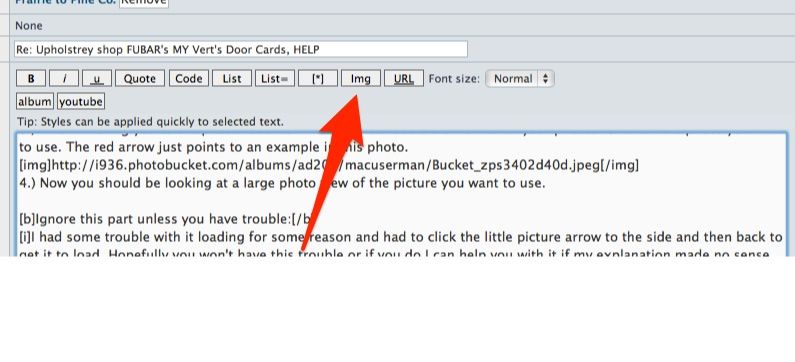
 in your text area. Put your cursor in between the two inside brackets that are facing like ][ and paste the link you copied from photo bucket in-between them. Now you should be able to click the preview button at the bottom of the post and double check to make sure the picture worked correctly.